Recommended AI Tools
5We've analyzed the market. These tools offer specific features for create instructional gifs.
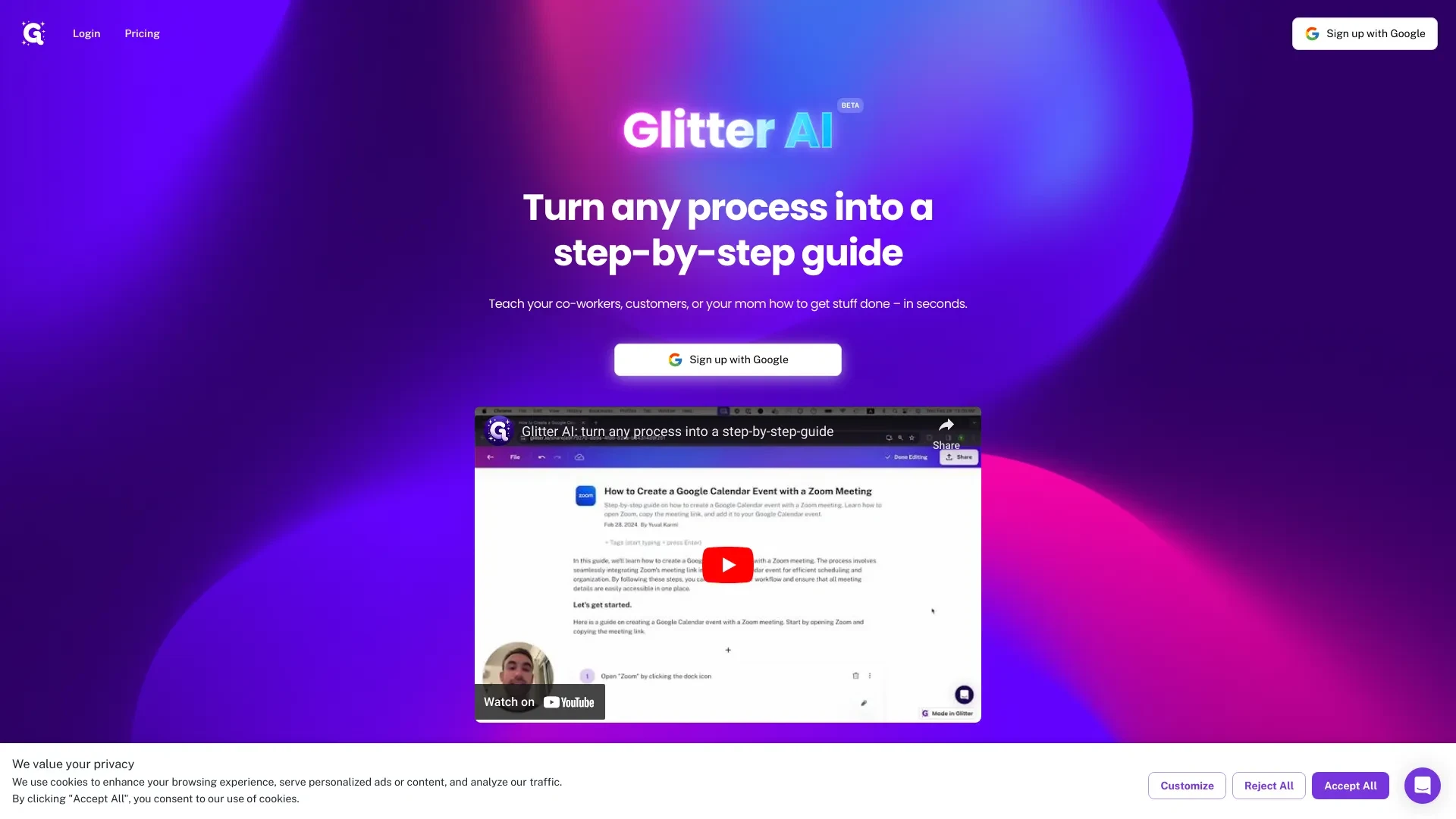
Glitter AI
Glitter AI simplifies creating step-by-step guides by converting spoken instructions into written documentation.
- Automated documentation generation
- Voice-activated guide creation
- Instant screenshot integration
AI Analysis
Why use this AI Glitter AI for Create Instructional Gifs?
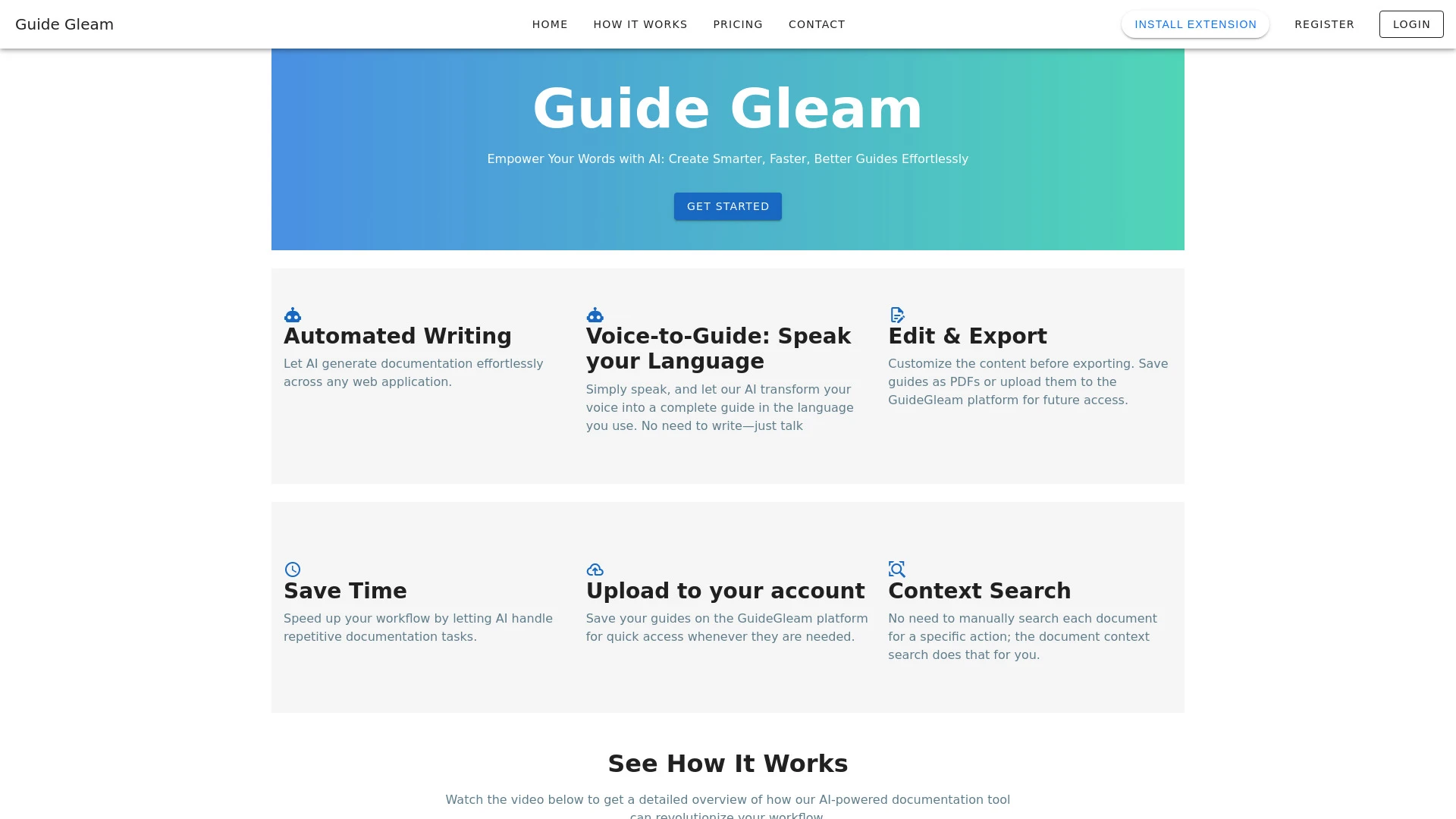
GuideGleam
GuideGleam is a user-friendly AI tool that transforms images into detailed visual guides and step-by-step instructions.
- AI-powered guide generation
- Customizable visual content
- Export options to PDF
AI Analysis
Why use this AI GuideGleam for Create Instructional Gifs?
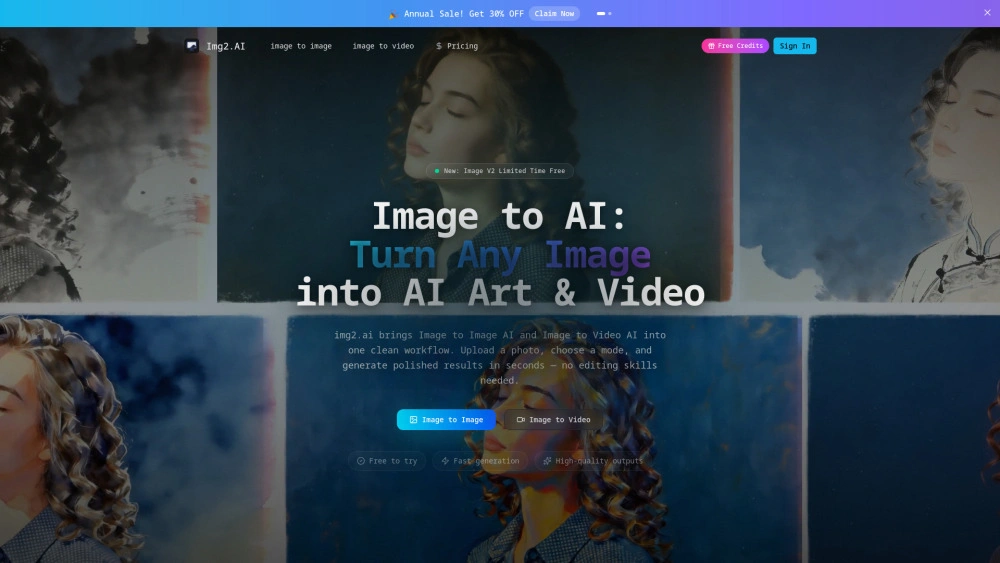
img2.ai
Img2.ai is an AI-powered platform turning images into art and animated videos for creators.
- Image to Image AI: Style transform with subject consistency
- Image to Video AI: Animate photos into short clips
- Text to Image: Generate visuals from prompts
AI Analysis
Why use this AI img2.ai for Create Instructional Gifs?
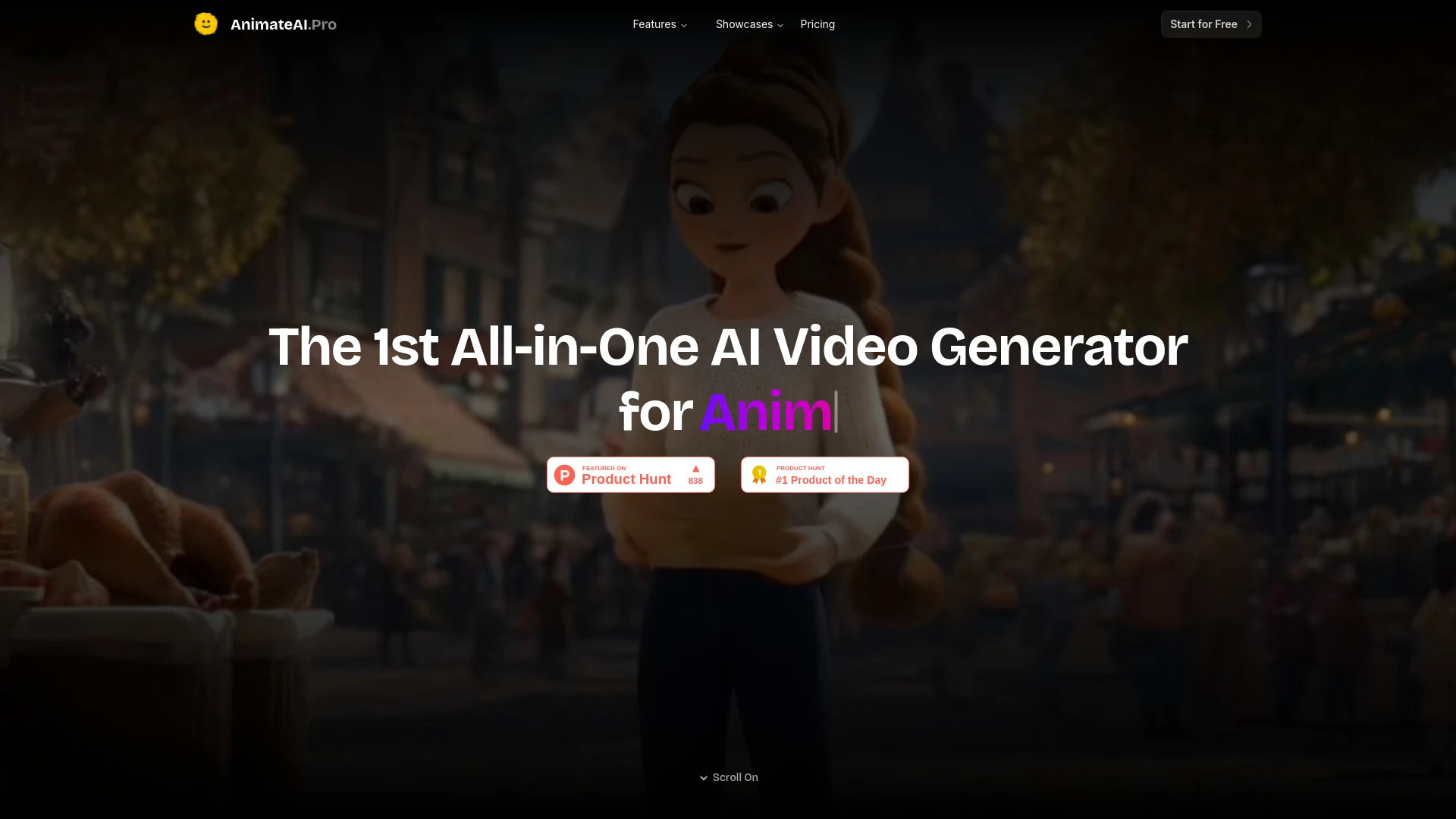
AnimateAI
AnimateAI is an innovative AI video generator that creates animated videos for diverse applications like storytelling and trailers.
- All-in-one AI video generator for animation
- Automatic publishing to major platforms
- Integrated script writing and voiceover
AI Analysis
Why use this AI AnimateAI for Create Instructional Gifs?
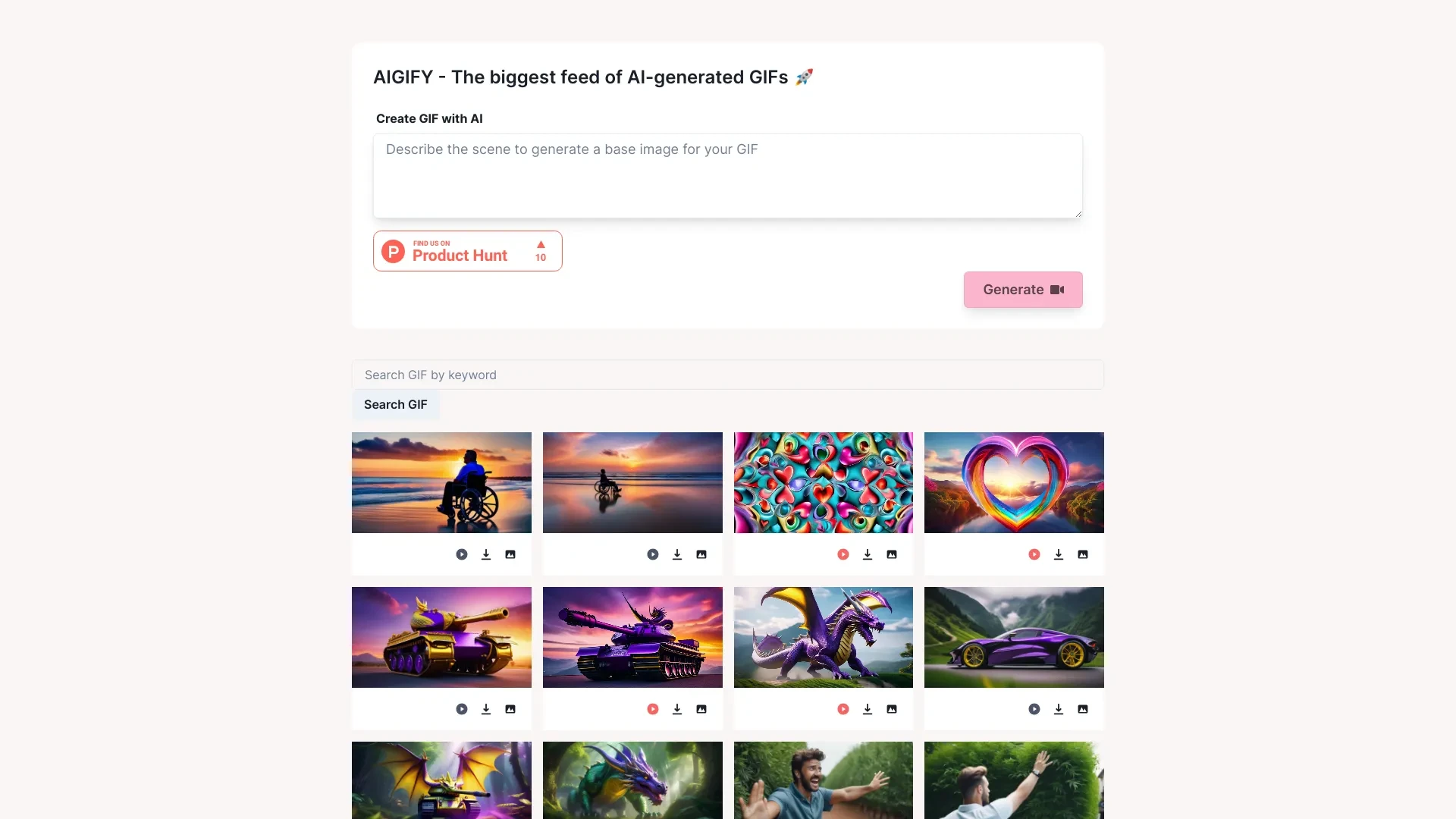
AIGIFY
AIGIFY is an innovative search engine specifically designed for creating and finding AI-generated GIFs quickly and easily.
- Search for AI-generated GIFs
- Generate unique AI-created GIFs
- User-friendly interface
AI Analysis
Why use this AI AIGIFY for Create Instructional Gifs?
Practical Workflows
Don't just buy tools—build a system. Here are 3 proven ways to integrate AI into your create instructional gifs process.
Workflow 1: From concept to first Create Instructional GIF (Beginner)
- Define the single-step instructional goal and identify the exact user action to illustrate.
- Capture or import a screen recording and choose a GIF-friendly loop duration (5–10 seconds).
- Use an AI tool to auto-trim, annotate with on-screen highlights, and export a publish-ready GIF.
- Review for clarity and accessibility: ensure captions are optional and the sequence is self-explanatory.
Workflow 2: Daily efficiency for Create Instructional Gifs (Regular user)
- Create a reusable project template for recurring tutorials (branding, fonts, and colors).
- Upload short videos, then apply AI-based scene detection to segment steps automatically.
- Batch process: batch annotate steps, overlay callouts, and generate multiple GIFs with consistent cadence.
- Export with optimized file sizes for web sharing and embed-ready formats.
Workflow 3: Full automation for Create Instructional Gifs (Power user)
- Connect your content library to an AI workflow that triggers GIF creation on new tutorial material.
- Define rule-based prompts to generate captions, alt text, and looping behavior automatically.
- Schedule batch exports to a CDN, set versioning for updated tutorials, and automate A/B caption testing.
- Monitor performance metrics and adjust templates to improve comprehension and engagement.
Effective Prompts for Create Instructional Gifs
Copy and customize these proven prompts to get better results from your AI tools.
Beginner
Create a 6-second GIF showing how to save a document in our app. Use clear on-screen highlighting, auto-generate a caption, and export as a web-optimized GIF with looping enabled.Advanced
Role: Instructional Designer. Context: train new users on multi-step onboarding. Constraints: preserve brand colors (#1A73E8, #FFFFFF), include callouts after each step, output in GIF with 12 fps. Format: export bundle of 5 GIFs with consistent templates.Analysis
Evaluate three Create Instructional GIF outputs for clarity and engagement. Compare caption length, highlight visibility, and loop smoothness. Provide a 1-page optimization plan with prioritized changes.
What is Create Instructional Gifs AI?
Create Instructional Gifs AI defines intelligent tools and workflows that turn screen actions into concise, looping GIFs for training, onboarding, and quick-reference guides. It’s ideal for teams that need fast, repeatable visuals and anyone seeking accessible, tappable tutorials.
- Who it's for: teams delivering product how-tos, educators, support desks, and content creators focused on microlearning.
- Key outcome: crisp, shareable GIFs with captions, highlights, and consistent branding.
Benefits of Using AI for Create Instructional Gifs
- Speed: reduce manual editing time by up to 60% with auto-cropping, annotation, and captioning.
- Consistency: templates ensure branding and formatting across all GIFs.
- Accessibility: auto-generated captions and alt text improve comprehension for diverse users.
- Scalability: batch processing enables large libraries of instructional GIFs without sacrificing quality.
- Optimization: AI suggests caption length, color contrast, and highlight positions for clarity.
How to Choose the Right AI for Create Instructional Gifs
- Workflow fit: pick tools that support your preferred steps from capture to export.
- Automation capabilities: look for templates, batch processing, and integration with your CMS or LMS.
- Quality controls: ensure accurate frame timing, high-contrast highlights, and accessible captions.
- Cost and scale: balance per-seat vs. usage-based pricing with your anticipated GIF library size.
- Support and updates: prioritize vendors with active feature roadmaps and customer support for instructional content.
Best Practices for Implementing Create Instructional Gifs AI
- Define a single-task focus per GIF to maximize clarity.
- Use consistent branding, fonts, and color overlays across all GIFs.
- Keep GIF length under 10 seconds where possible to maintain attention.
- Test with real users and iterate based on feedback and engagement metrics.
- Ensure accessibility: provide alt text and consider keyboard-friendly controls for viewers.
AI for Create Instructional Gifs: Key Statistics
In 2026, 68% of corporate training teams use AI-powered GIFs for quick tutorials, up from 42% in 2024.
Average time-to-publish for a single Create Instructional Gif dropped from 45 minutes to 12 minutes with automation.
92% of onboarding teams report higher task comprehension when using motion-based GIFs compared to static images.
GIF optimization reduces file size by 35–60% without sacrificing clarity, enabling faster web delivery.
Top Create Instructional Gifs AI tools report 25–60% productivity gains in quarterly training content output.
About 54% of teams adopted centralized GIF libraries to ensure consistent branding across all instructional content.
Frequently Asked Questions
Get answers to the most common questions about using AI tools for create instructional gifs .
Create Instructional Gifs AI refers to AI-enabled tools and workflows that produce concise, looping GIFs illustrating step-by-step processes. These tools analyze screen actions, add annotations, captions, and highlights, and export optimized GIFs suitable for training, onboarding, and quick-reference guides.
Start by choosing a beginner-friendly AI GIF tool, import a short screen recording of a task, let the AI detect actions, add callouts, and export a looped GIF. Create a simple template for branding and accessibility, then replicate for future tutorials.
For simple tasks, a single, beginner-friendly tool is often enough. For teams and ongoing series, a suite offers automation, collaboration, versioning, and analytics that improve consistency and scalability across multiple Create Instructional Gifs projects.
Common issues include non-looping frames, export settings mismatching GIF vs. video, or inconsistent frame rates. Ensure the GIF is set to loop forever, choose an appropriate frame rate (around 12–15 fps), and verify the animation starts and ends on a clear action.
Related AI Tool Categories
Explore other AI tool categories similar to Create Instructional Gifs that might interest you.
AI User-Generated Content Video Generator
The AI User-Generated Content Video Generator leverages artificial intelligence to automate video creation from user inp...
AI Repurpose Assistant
The AI Repurpose Assistant employs advanced algorithms to transform content across formats, enhancing creativity and eff...
AI Developer Documentation
AI Developer Documentation provides essential guidelines for creating, integrating, and maintaining AI systems. It enhan...
AI GIF Generator
AI GIF Generators leverage machine learning algorithms to create animated GIFs from images, videos, or text. They automa...
AI Ad Creative Assistant
The AI Ad Creative Assistant leverages machine learning to generate tailored ad content, optimizing messaging for target...
AI Photo Enhancer
AI Photo Enhancers utilize machine learning algorithms to automatically improve image quality, clarity, and aesthetics....